How To Update A Shopify Theme
Last modified: December 23, 2025

| # | Name | Image | |
|---|---|---|---|
| 1 |

|
Booster
|
|
| 2 |
|
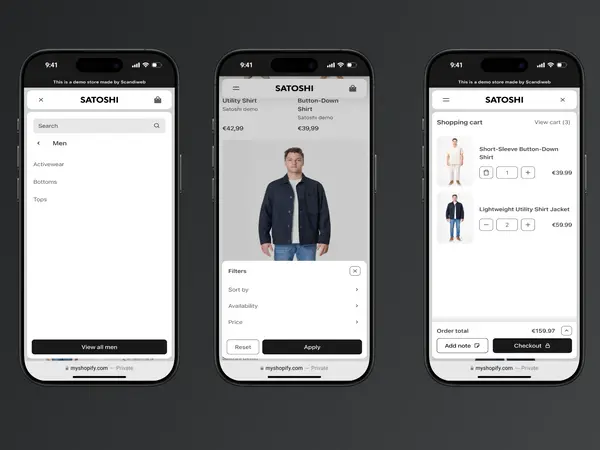
Satoshi
|
|
| 3 |

|
Debutify
|
|
| 4 |

|
Symmetry
|
|
| 5 |

|
Korando
|
|
| 6 |

|
Atlantic
|
|
| 7 |

|
Mavon
|
|
| 8 |

|
Grid Theme
|
|
| 9 |

|
Everything
|
|
| 10 |

|
Flow - Timeless
|
|
| 11 |

|
Envy - Luxe
|
|
| 12 |

|
Expanse - Classic
|
|
| 13 |

|
Palo Alto
|
|
| 14 |

|
Sahara - Sahara
|
|
| 15 |

|
Prestige - Couture
|
|
| 16 |

|
Testament - Deliverance
|
|
| 17 |

|
Yuva - Classic
|
|
| 18 |

|
Pipeline - Clean
|
|
|
Show More
|
|||
-
Will updating the Shopify theme affect my store’s SEO?
It can, depending on the changes made. Ensure the updated theme is SEO-friendly, and check the SEO settings after updating.
-
How long does it take to update a Shopify theme?
The time varies depending on the extent of customizations and data. Always plan and schedule the update to avoid disruptions during peak business hours.
-
What should I do if I encounter issues after updating the theme?
Check the theme’s documentation for solutions, contact the theme developer for support, or consider hiring a Shopify expert to resolve the issues.
Enhancing Theme Update Process
Understanding Automatic and Manual Updates
Shopify themes update automatically when no code changes have been made, ensuring that the latest features and bug fixes are integrated seamlessly.
However, if there have been modifications to the code, either by the store owner or through installed apps, a manual update is required to preserve those customizations.
Efficient Ways to Update Themes
There are two efficient methods of updating Shopify themes without losing customizations.
The first involves duplicating the current theme, updating the duplicate from the Shopify Theme Store, and then customizing it as needed before publishing. This process, although thorough, can be lengthy.
Utilizing Theme Updater Apps
The second method involves using a Theme Updater App. This app simplifies the update process, eliminating the need to visit the theme store and customize the new theme from scratch.
It’s a time-saver and ensures that your store is always running the latest theme version with all your customizations intact.
Transitioning to a New Theme
Exploring Shopify’s Theme Options
If you’re considering a change, Shopify offers a variety of free and premium themes, each designed to cater to different business needs and aesthetic preferences.
The Dawn theme, for instance, is a popular free option that is compatible with Shopify 2.0.
Steps to Change Your Shopify Theme
Changing a theme is a straightforward process. It involves selecting a new theme from the Shopify store, customizing it to fit your brand, and then publishing it.
It’s important to thoroughly testing the new theme to ensure that all elements, including custom CSS and installed apps, are functioning optimally.
Considerations When Switching Themes
Pay attention to details when switching themes. It’s crucial to consider how the mobile version looks, ensure the logo is displayed correctly, and confirm that the content fits properly.
Every aspect of the user experience should be evaluated to ensure a smooth transition.
Conclusion: How To Update A Shopify Theme
When you have a quality theme for your Shopify store, you will win over customers. But, you must keep up with updating your store’s theme. This will maintain your website’s security and the aesthetically pleasing look of your store.