How To Improve Shopify Store Speed
Last modified: June 7, 2026

Improving your Shopify store speed comes down to four levers: serve smaller images, ship less JavaScript, pick a lean theme, and meet Google’s Core Web Vitals thresholds. Everything else is a variation on those four. This guide walks through each one with specifics you can act on today, plus the testing tools that tell you whether the changes actually worked, and a measurement workflow most guides skip for pinning down exactly which apps are dragging you down.
Why it matters: Google uses page experience as a ranking signal, and Deloitte’s 2020 milliseconds-make-millions study found a 0.1-second improvement in mobile load time lifted retail conversions by 8.4%. If your store takes 5+ seconds to load on mobile, you’re not just losing SEO, you’re losing sales at the cart. If the slowness is sudden or your editor is failing to load, see our Shopify theme not working diagnostic before working through the speed fixes below; a broken theme behaves differently from a slow one.
1. Compress Images and Switch to WebP
Images are almost always the biggest chunk of what loads on a Shopify page. A single uncompressed hero banner can be 2 MB on its own, more than most browsers want to download over mobile data.
What to actually do:
- Convert to WebP. WebP is typically 25-35% smaller than JPEG at the same visual quality. Shopify fully supports it and serves it automatically when the browser allows.
- Resize before upload. Don’t upload a 4000px-wide product photo if it’ll display at 800px. Resize to the largest size you actually need.
- Compress without losing quality. Tools like TinyPNG, Squoosh, or ImageOptim can shave 40-70% off a file with no visible difference.
- Write real alt text. “Women’s merino wool sweater in oatmeal” beats “IMG_4421.jpg” for accessibility and SEO alike.
2. Audit Your Apps (Ruthlessly)
Every Shopify app you install typically injects its own JavaScript and CSS into every page, not just the page it’s used on. A store with 20 apps is loading 20 scripts on the homepage even if only two are actually being used there.
Do this once a quarter:
- Open your app list and note which apps you’ve opened in the last 30 days.
- For each app you haven’t touched, ask: “Does this save me time or revenue?” If the answer is no, uninstall it (uninstall, not just disable, disabled apps often leave code behind).
- For the apps you’re keeping, check whether any two are doing the same job (e.g., two popup tools, two reviews widgets). Consolidate.
Most stores see their biggest single speed gain here, sometimes a full second shaved off LCP from removing 3-5 unused apps.
3. How to Pinpoint Exactly Which Apps Are Slowing You Down
“Audit your apps” is good advice, but most merchants don’t know how to actually attribute slowness to a specific app. The Shopify admin doesn’t show per-app performance impact. Here’s a workflow that does.
Step 1: Run a baseline. Before changing anything, run PageSpeed Insights on your homepage and one product page. Write down the LCP, INP, CLS, and total blocking time numbers. This is your before.
Step 2: Use Chrome DevTools Coverage. Open your store in an incognito Chrome window. Press F12 to open DevTools, then Cmd+Shift+P (Mac) or Ctrl+Shift+P (Windows) and search “Coverage.” Click the reload icon in the Coverage panel and let the page finish loading. You’ll get a list of every JavaScript and CSS file loaded, with the percentage of code actually used. Files showing 80%+ unused code that come from app domains (e.g., cdn.shopify.com/s/files/.../app-name.js or third-party domains) are dead weight.
Step 3: Disable suspect apps one at a time. Most apps add their scripts to the theme via a script tag or app embed block. In your theme editor, go to App embeds and toggle one app off. Re-run PageSpeed Insights. If your numbers improve significantly, that app is part of the problem. Repeat for each suspect.
Step 4: Read the Network waterfall. In DevTools’ Network tab, sort by Time descending. The slowest few requests are your real bottleneck. If three of the top five are from the same app’s CDN, that app is the issue regardless of what its product page says about being “lightweight.”
Step 5: Don’t trust app-store performance claims. Many apps advertise “no impact on speed” but inject scripts on every page anyway. The DevTools Network tab is the only honest measurement.
This 30-minute workflow consistently saves merchants from uninstalling the wrong app or, worse, hiring a developer to “optimize” a problem that’s just one bad embed.
4. Pick a Lightweight Theme
Before you migrate, confirm the theme is actually the bottleneck with our guide on how to diagnose a slow Shopify theme. Migration is expensive and pointless if the slowness is really coming from your apps or images. Once that’s ruled in, themes are the single biggest architectural decision affecting speed, and it’s often easier to switch themes than to retrofit a bloated one. Shopify’s own Dawn theme consistently scores well on PageSpeed Insights because it ships with less JavaScript out of the box. Many premium themes are beautiful but loaded with carousels, videos, and animations that tank mobile performance.
If you’re on a heavy theme and can’t migrate, at minimum strip the homepage down to essentials: one hero, one collection grid, one value-prop section. No auto-playing videos. No five-slide carousels. If you’re shopping for a new theme, you can use our Shopify theme detector to see what competitors run, and compare options in our theme-speed guides.
5. Lazy-Load Below-the-Fold Images and Videos
Lazy loading means images and videos don’t download until the visitor scrolls to them. Shopify themes built in the last few years handle this natively via the HTML loading="lazy" attribute, but only on images added through the theme editor. Images embedded in rich text blocks sometimes miss it.
Quick check: open your product page, view source, search for loading=. Every loading="lazy". Hero images above the fold should NOT be lazy-loaded, lazy-loading your LCP image hurts it.
6. Cut Third-Party Scripts
Third-party scripts, chat widgets, analytics, trust badges, heatmap tools, ad pixels, are the silent killers of Shopify speed. Each one phones home to an external server on page load.
A realistic audit: keep one analytics tool (GA4 or Shopify’s built-in), one chat tool if you actually staff it, and your ad pixels. Cut everything else. If you need heatmaps, run Hotjar for a week of research then turn it off.
7. Optimize Fonts
Custom fonts add character but also add requests and bytes. Three rules:
- Pick one or two font families maximum. Mix weights within a family instead of mixing families.
- Use system fonts where it doesn’t matter (body text on long pages).
- Preload your primary font so text doesn’t flash invisible (FOIT) or swap mid-load (FOUT). Themes with good font handling do this automatically.
8. Server Response Time on Shopify (Why TTFB Still Matters)
Time to First Byte (TTFB) is how long the server takes to send the first byte of HTML after a request. On most platforms it’s a hosting question. On Shopify, it’s a different conversation, you don’t pick the server, but several things you do still affect it.
What’s in your control:
- App-driven server load. Apps that hook into Liquid rendering (loyalty programs, dynamic pricing, currency converters) run server-side on every page request. A store with five Liquid-injecting apps has a measurably higher TTFB than one with none.
- Theme complexity. Heavy theme code with deep loops over collections, large metafield reads, or excessive section rendering increases server-side rendering time. A bloated theme hurts TTFB even before any JavaScript runs.
- Plan tier. Shopify Plus and the higher tiers get priority routing during traffic spikes. Lower-tier plans see more variable TTFB during peak hours, especially Black Friday week.
What’s NOT in your control: Shopify’s edge servers, DNS, the underlying database. Don’t waste time looking for “Shopify hosting upgrades”, they don’t exist outside of Plus.
How to measure it: WebPageTest.org gives you a precise TTFB reading per request. Aim for under 600ms on a desktop connection and under 1.2s on simulated mobile. If you’re consistently over those thresholds, the fix is almost always app reduction or theme cleanup, not anything Shopify support can do for you.
9. Hit Core Web Vitals Thresholds
Google’s Core Web Vitals are the concrete targets you’re actually optimizing for:
- LCP (Largest Contentful Paint) ≤ 2.5 seconds, how fast your main content (usually the hero image) shows up.
- INP (Interaction to Next Paint) ≤ 200ms, how quickly the page responds when someone taps or clicks.
- CLS (Cumulative Layout Shift) ≤ 0.1, whether stuff jumps around while loading (ads, late-loading images without dimensions, etc.).
If you pass all three in the “Good” bucket, you’re in rare company among Shopify stores. Most of the time, fixing LCP means image work (sections 1 and 5), fixing INP means cutting scripts (sections 2 and 6), and fixing CLS means setting explicit width and height on images and avoiding late-inserted banners.
10. Use the Shopify CDN (You Already Are)
One good-news item: every Shopify store already runs on Shopify’s global CDN, so your images, CSS, and JS are served from a location near the visitor. You don’t need to install a third-party CDN on top. What you DO need to avoid: hosting images on your own WordPress blog or Google Drive and hotlinking them, you lose CDN benefits and add a DNS lookup.
11. Test Speed With the Right Tools
You can’t improve what you don’t measure. Run these regularly:
- PageSpeed Insights (pagespeed.web.dev), Google’s own tool, tests real-user Core Web Vitals data, free.
- Shopify’s Online Store Speed Report (Admin → Online Store → Themes → three-dot menu), gives you a Shopify-specific score and compares to similar stores.
- Lighthouse in Chrome DevTools, run locally for instant feedback while you iterate on changes.
- GTmetrix, good for waterfall analysis to see which specific files are slow.
- WebPageTest, the most precise TTFB and connection-stage breakdown if you suspect server-side issues.
Test on mobile, not desktop. Mobile numbers are what Google ranks on.
12. Common Mistakes That Kill Shopify Speed
- Uploading video to the homepage as an auto-playing background.
- Installing a “speed optimization” app that just adds more scripts.
- Running two reviews apps because you didn’t fully uninstall the first.
- Using a slideshow with 5+ slides above the fold.
- Loading multiple font weights you never use.
- Keeping demo content (and its images) from a theme install.
- Trusting an app’s marketing copy over what Chrome DevTools actually shows you.
Speed optimization on Shopify is maintenance, not a one-time project. Schedule a 30-minute audit each quarter, run PageSpeed Insights, run the Coverage workflow on any new app you install, and remove the one heaviest thing you can live without.
How to Know If Your Store Passed the Core Web Vitals Update
Google reports Core Web Vitals at the page-group level inside Search Console under Experience > Core Web Vitals. Open it, look at the mobile report (desktop almost always passes), and check whether each URL group is labeled Good, Needs Improvement, or Poor. The label that matters is the one on your product and collection pages, since those drive the most ranking-relevant traffic. If the mobile chart shows mostly Good URLs with a stable trend over the last 90 days, your store has cleared the bar.
The catch: Core Web Vitals data in Search Console is based on real-user CrUX data, which only populates once you have enough mobile traffic. New stores or low-traffic stores often show “No data available”, that doesn’t mean you’ve failed, it means Google can’t measure you yet. Use PageSpeed Insights with the field-data option as a proxy until the Search Console report starts showing your URLs.
What Changed in Shopify Speed Optimization Between 2025 and 2026
Three meaningful changes worth knowing about, since most older speed guides don’t reflect them yet:
- INP replaced FID as a Core Web Vital in March 2024. Interaction to Next Paint measures how quickly the page responds to clicks, taps, and key presses, not just the first interaction. Shopify themes that pass FID often fail INP because of heavy JavaScript app stacks that delay later interactions. The fix is the same: cut apps, defer scripts, and lighten the theme.
- Shopify Hydrogen and headless storefronts became viable for SMB stores in 2025. If your store is doing 6, 7 figures and you’ve squeezed everything out of the standard Liquid theme, a Hydrogen storefront on Oxygen can shave another 0.5, 1.5 seconds off mobile LCP. The trade-off is developer cost and the loss of one-click theme editing.
- Shopify’s “Performance” report in admin now exposes per-app load impact. Open Settings > Apps and sales channels > Installed apps, then look for the speed-impact column on each app. It’s the cleanest way to identify the slowest apps without opening Chrome DevTools, and it didn’t exist in early 2025.
| # | Name | Image | |
|---|---|---|---|
| 1 |

|
Streamline
|
|
| 2 |
|
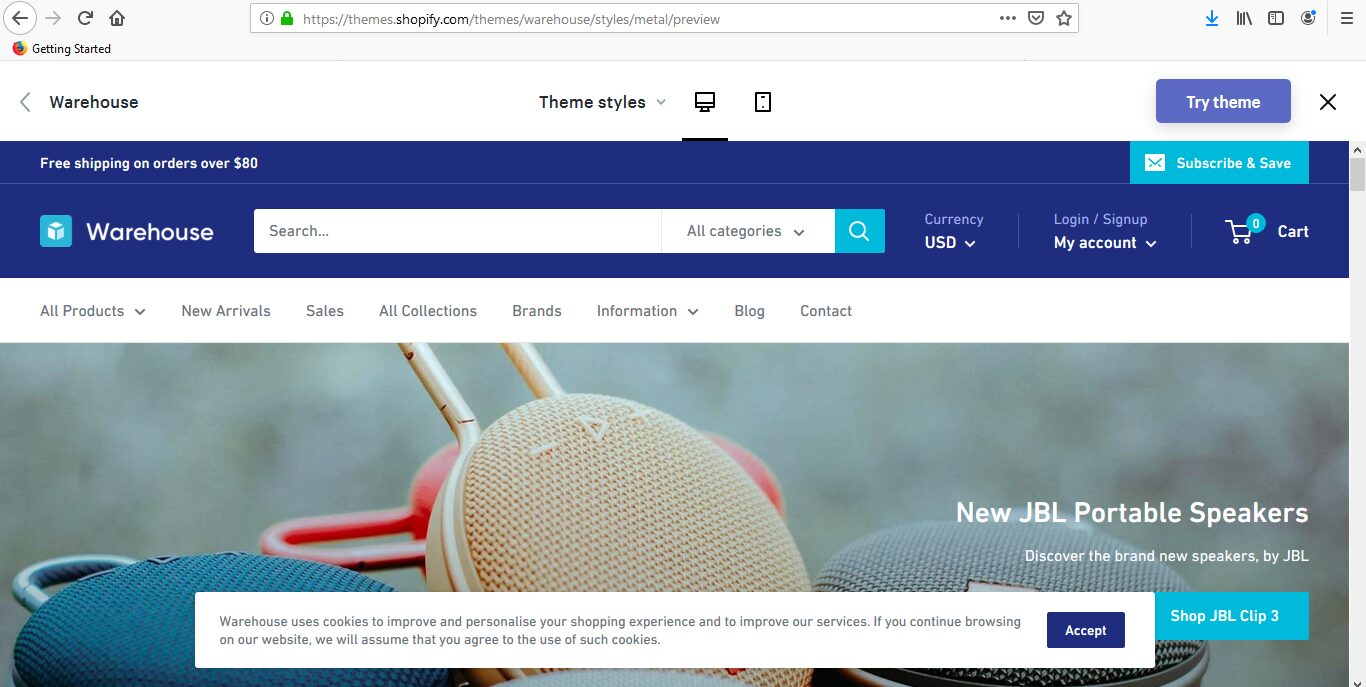
Warehouse
|
|
| 3 |
|
Avenue
|
|
| 4 |

|
Motion
|
|
| 5 |

|
Capital
|
|
| 6 |

|
Story
|
|
|
Show More
|
|||
-
Why is my Shopify store so slow?
The most common causes, in order: oversized uncompressed images (especially hero banners), too many installed apps injecting JavaScript, a feature-heavy theme with carousels and videos, and too many third-party scripts (chat widgets, analytics tools, ad pixels). Audit in that order - you’ll usually find the biggest win in the first two.
-
What is a good Shopify speed score?
Shopify’s own speed report compares you to similar stores on a 0-100 scale; above 50 is solid, above 70 is excellent. On Google PageSpeed Insights, aim for mobile scores above 50 (most Shopify stores sit in the 20-40 range). The numbers that matter most are Core Web Vitals: LCP under 2.5s, INP under 200ms, CLS under 0.1.
-
How do I test my Shopify store speed?
Use four tools together. PageSpeed Insights gives you Google’s view and real-user data. Shopify’s built-in Online Store Speed Report (Admin → Online Store → Themes) compares you to similar stores. Lighthouse in Chrome DevTools is fast for iterating. GTmetrix shows a waterfall so you can see which specific files are slow. Always test on mobile.
-
Does the Shopify theme really affect speed?
Yes, more than almost any other factor. A lightweight theme like Shopify’s Dawn loads significantly less JavaScript than many premium themes with heavy animations and carousels. Switching themes is often the single biggest speed improvement a store can make, even before touching images or apps.
-
Should I install a Shopify speed optimization app?
Usually no. Most “speed” apps add their own scripts to your store, which is the problem you were trying to solve. Manual image compression, app cleanup, and theme choice outperform nearly every speed app. The exception is a lazy-loading app if your theme doesn’t support it natively - and most modern themes already do.
-
What image format is best for Shopify speed?
WebP. It’s typically 25-35% smaller than JPEG at the same visual quality, and Shopify serves it automatically to browsers that support it (which is essentially all of them now). Convert existing JPEGs and PNGs to WebP using Squoosh, TinyPNG, or ImageOptim, then re-upload.
-
What is a good TTFB for a Shopify store?
Aim for under 600ms on desktop and under 1.2s on simulated mobile, measured via WebPageTest.org. Shopify TTFB is mostly affected by apps that hook into Liquid rendering (loyalty programs, dynamic pricing, currency converters) and theme complexity, since you don’t control the server itself. If your numbers are consistently over those thresholds, the fix is reducing Liquid-injecting apps or simplifying theme code - not contacting Shopify support, which can’t tune it for non-Plus stores.
Advanced Speed Optimization Techniques
Eliminate Render-Blocking JavaScript and CSS
Render-blocking resources stop the browser from painting the page until they’re downloaded and parsed. On Shopify, the usual culprits are app scripts and third-party tags loaded synchronously in the . Shopify merchants on growth or advanced plans can add defer or async attributes inside theme templates; on lower plans, the easiest win is removing the apps responsible rather than trying to edit liquid. If you need deeper changes (minifying inline HTML, splitting critical CSS), a developer hour is well spent here, this is one of the few areas where DIY attempts frequently break something.
AMP (Accelerated Mobile Pages), When It Still Makes Sense
AMP has fallen out of fashion since Google stopped giving it preferential SERP treatment in 2021, but it can still cut mobile load times dramatically for content-heavy pages. Shopify stores with blog-style content or long product pages sometimes benefit from apps like Shop Sheriff or FireAMP. For most stores, modern theme performance combined with the fixes above makes AMP unnecessary.
Consolidate Tracking Through Google Tag Manager
Every tracking pixel you add, Meta, TikTok, Google Ads, Bing, Pinterest, fires its own script on page load. Google Tag Manager lets you load one container that manages all of them, controls when each fires, and defers non-essential tags until after interaction. GTM is available on all Shopify plans (not just Plus) and is usually the cleanest way to manage more than 2-3 marketing pixels without wrecking performance.
Next Steps
Run PageSpeed Insights on your homepage and top-selling product page, grab the screenshot, and fix the top 3 opportunities it flags. Do that once a quarter and your Shopify store speed will stay in the top tier. For more on store design decisions that affect performance, see our guide to Shopify customization and design.