How To Edit The Home Page On Shopify
Last modified: March 29, 2026

Editing your Shopify homepage is pretty painless-if you know where to look. Here’s how to do it, step-by-step:
How to Edit the Home Page in Shopify
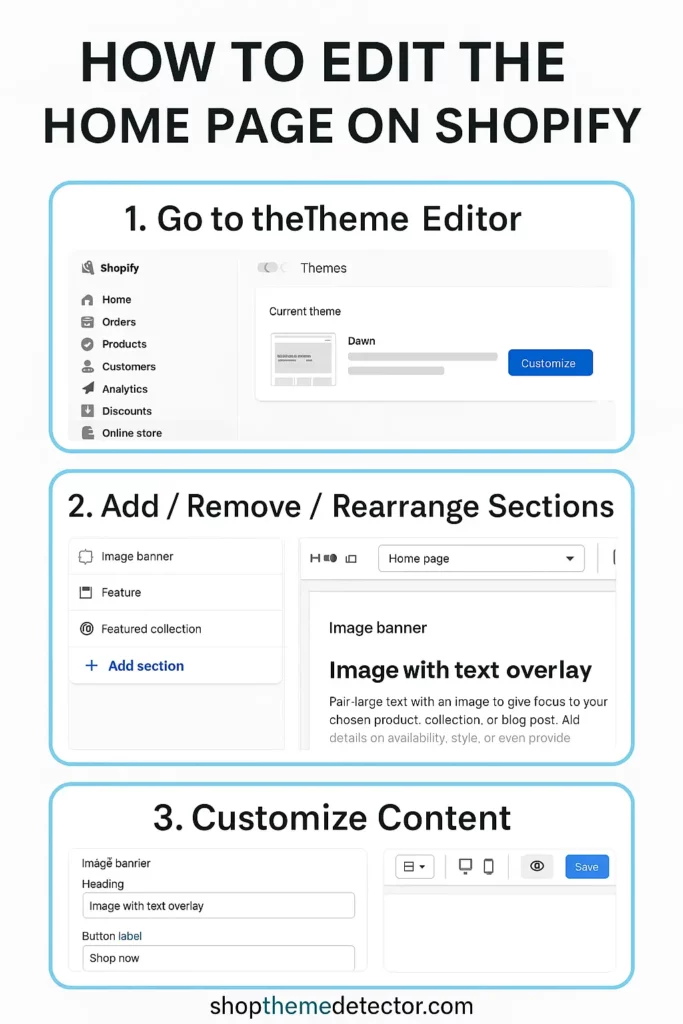
Step 1: Go to the Theme Editor
-
In your Shopify Admin, go to:
Online Store > Themes -
Find your active theme
-
Click “Customize” on the theme
This opens the Theme Editor, where you control the homepage layout.
Step 2: Add / Remove / Rearrange Sections
In the left panel, you’ll see your homepage sections.
-
Click a section (e.g., “Image Banner”, “Featured Collection”) to edit text, buttons, images
-
Click Add section to insert things like:
-
Slideshow
-
Newsletter
-
Testimonials
-
Featured product
-
-
Drag and drop sections to reorder
-
Use the eye icon to hide sections without deleting them
Step 3: Customize Content
Each section has its own settings:
-
Change headings, buttons, and product picks
-
Upload images directly in the section
-
Pick collections/products dynamically from your store
Step 4: Preview & Save
-
Use the top bar to preview desktop, tablet, mobile
-
Hit Save after each round of changes
Pro Tips from shopthemedetector.com:
-
Use fewer sections, not more. Clean sells better.
-
Put a call-to-action above the fold (first screen)
-
Don’t use carousels unless you have a very good reason
Your home page is a very important part of your Shopify store. It tells your customers more about your brand, what they can get there, and your brand’s core values. Therefore, you can help convert a customer with a good home page. A good home page is also central to your SEO strategy. Without a good strategy for SEO, you can’t succeed because you won’t generate enough traffic.
Themes
The overall design of your home page is set by your theme. These are often designed in sections where each section can have a certain type of content (text, image, video, meta tags etc.) that you can edit. Most themes will let you swap out certain sections that aren’t applicable to your website, but that isn’t always the case. In all sections, you should be able to customize the content to fit more within your brand.
There are some fixed sections on your theme. These will be the header and footer. These cannot be moved regardless of the theme options. They can be customized and will most likely be the same on every page that you publish on your Shopify website, including all product, collection and blog pages.
The Theme Editor
There is a theme editor that allows you to add, reorder and delete sections from your theme. The theme editor is located within the left-hand side of the Shopify admin area. There are two tabs within the theme editor: ‘Sections’ and ‘General Settings’.
In the ‘Sections’ tab, you can see the page content of your theme. You can customize all the sections within this area.
The ‘General Settings’ tab allows you to make changes that are carried throughout your store. This includes the fonts, text, background colors and connecting your Shopify store to social media accounts.
Theme Styles
Most themes have more than one style that you can apply. Each style can include a different general appearance with different font, color schemes and more to distinguish itself from the other styles. To change the style you can click on the ‘Change Theme Style’ button that is located within the ‘General Settings’ tab.
There you will see a list of the available styles. You can then select the most appropriate one.
Adding (And Removing) Sections To The Store
If you want to add sections to your store, follow these steps:
Step 1 - Login
Log into your Shopify admin using your store credentials.
Step 2 - Online Store
Click on the ‘Online Store’ option and then find and click on the ‘Themes’ option. Find the theme you’re using and then click on the option that reads, ‘Customize Theme’.
Step 3 - Add Section
In the sidebar menu there is an option that reads, ‘Add Section’, click on this. You can then select the type of section you want and then click on the ‘Add’ option. Once added, you can change the content within the section.
You can also move sections on your home page by dragging the section to where you would like it to be removed.
Step 3a - Remove
If you would like to remove a section from the home page, select the section you want to delete and then click on the ‘Delete Section’ that is located at the bottom of the sidebar menu.
Step 4 - Save
Then publish your changes by clicking on the ‘Save’ button.
| # | Name | Image | |
|---|---|---|---|
| 1 |

|
EComposer Next Generation Page Builder
|
|
| 2 |

|
Shogun Landing Page Builder
|
|
| 3 |

|
PageFly Advanced Page Builder
|
|
| 4 |

|
GemPage Powerful Page Builder
|
|
| 5 |

|
Instant
|
|
| 6 |

|
LayoutHub Easy Page Builder
|
|
| 7 |

|
Page Studio Page Builder
|
|
| 8 |

|
Hypervisual Page Builder
|
|
| 9 |

|
Page Builder & PRO page editor
|
|
| 10 |

|
Buildify Drag & Drop Builder
|
|
| 11 |

|
Section Store: Theme sections
|
|
| 12 |

|
Beae Landing Page Builder
|
|
| 13 |

|
Puco Sections: Theme Sections
|
|
| 14 |

|
Foxify: Smart Page Builder
|
|
| 15 |

|
Pagetify Landing Page Builder
|
|
| 16 |

|
Veda Landing Page Builder
|
|
| 17 |

|
Replo Landing Page Designer
|
|
| 18 |

|
Zipify Landing Page Builder
|
|
| 19 |

|
Tapita Landing Page Builder
|
|
| 20 |

|
Outlink External Links Button
|
|
|
Show More
|
|||
-
How often should I update my Shopify homepage?
Regularly updating your homepage, whether monthly or quarterly, with fresh content, new products, and promotions can re-engage past visitors and attract new ones, while ensuring alignment with your brand’s message and goals.
-
Can I revert to a previous version of my homepage if needed?
Yes, Shopify provides a “Rollback” feature that allows you to revert to a previous version of your theme. However, it’s advisable to regularly backup your theme to ensure you can recover specific versions if needed.
-
Can I preview changes before publishing them on Shopify?
Yes, Shopify allows you to preview changes before publishing. Using the theme editor, you can view modifications in real time and ensure everything looks as intended before making it live for your visitors.
Enhancing Your Shopify Homepage
Understanding Theme Sections
Sections are integral parts of your Shopify theme. They allow you to add, reorder, and customize content on your homepage.
Each theme offers unique sections like slideshows, collections, videos, and featured products. Within these sections, you can incorporate various content types, such as products, text, or images. You can also add social media icons to your homepage sections to direct visitors to your social profiles.
Fixed Sections and Their Role
Certain sections, like the theme’s Header and Footer, are fixed. This means you can’t move them around, but you can modify their content to fit your brand’s message. In the footer, you can remove the ‘Powered by Shopify’ text and replace it with social media icons to give your store a more professional and branded look.
Utilizing the Theme Editor
The theme editor is a powerful tool that lets you manage sections. It’s split into two main tabs: Sections and General Settings. The Sections tab displays the content available with your theme, allowing you to customize, add, or rearrange sections.
The General Settings tab, on the other hand, lets you implement global changes like adjusting fonts, text, background colors, and linking your social media accounts. This is where you can set up important branding elements like your logo, favicons, and color scheme when you first set up your Shopify store.
Optimizing Your Homepage Layout
Reordering Sections for Better Flow
The layout of your homepage plays a crucial role in user experience. By adjusting the order of sections, you can guide your visitors through a seamless journey. To do this, use the theme editor’s sidebar menu to drag and rearrange sections.
Undoing Changes for a Fresh Start
Mistakes happen, and that’s okay. The theme editor comes with an Undo button that reverts your most recent change. If you change your mind again, the Redo button is there to help.
Tips for Editing Your Shopify Homepage
Keep It Simple
Simplicity is key. A cluttered homepage can overwhelm visitors. Prioritize essential elements and ensure a clean, user-friendly design.
Mobile Responsiveness
Many shoppers use mobile devices. Ensure your homepage looks and functions well on all screen sizes. Test regularly and adjust as needed.
Consistent Branding
Your homepage is a reflection of your brand. Maintain consistent colors, fonts, and imagery to build trust and recognition. Add your logo to key places like your email templates and Shopify checkout page for a cohesive branded experience.
Use High-Quality Images
Images play a pivotal role in attracting and retaining visitors. Use clear, high-resolution images that resonate with your audience.
Update Regularly
Keep your homepage fresh by updating it regularly. Highlight new products, promotions, or content to keep visitors engaged and returning.
Conclusion: How To Edit The Home Page On Shopify
There are also other options that can be used to edit home pages and set up other pages. For instance, you can use drag and drop page builders on your website. These are useful tools that allow you to completely customize the look of your website while using the color and font schemes of your theme.

