How To Add Social Media Icons In Shopify Footer
Last modified: September 23, 2026

Many stores like to have their social media icons added to their Shopify store. There are two main ways to do this now. Get the links to your social media accounts ready and let’s set up your social media icons in the foother. Either use your online store editor or use the settings shortcut and you’ll have your social media icons in your Shopify footer in a few short clicks.
These are the steps that you need to take to add social media icons to your Shopify store’s footer.
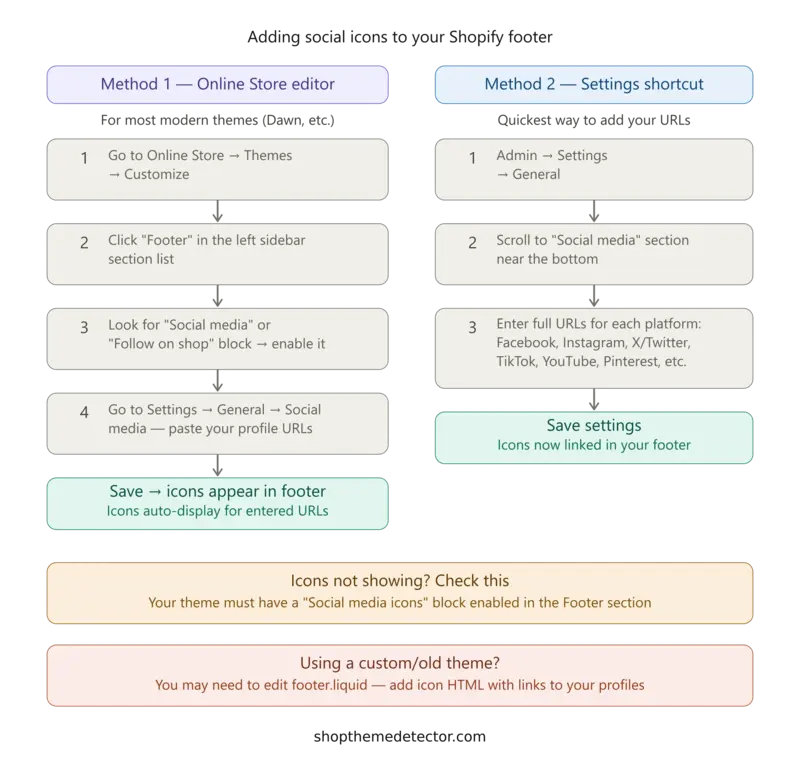
Method 1 - Theme Customizer (recommended)
- Go to Online Store → Themes → Customize
- Click Footer in the left panel
- Look for a “Social media icons” or “Follow on shop” block and enable it
- Then go to Settings → General → Social media and paste in your profile URLs
- Save - icons appear automatically for any URL you’ve added
Method 2 - Settings shortcut
- Go to Settings → General
- Scroll to the Social media section
- Enter your full profile URLs (e.g.
https://instagram.com/yourshop) - Hit Save
Tips:
- You need to do both - add URLs in Settings and enable the block in the theme editor. Missing either step is why icons often don’t appear.
- Shopify automatically displays the icon for each platform you’ve filled in - you don’t need to upload icon images.
- If you’re on an older or custom theme that doesn’t have a social block, you’d need to edit the
footer.liquidfile to manually add icon links. Let me know if you need help with that!
-
Can social media icons affect my store’s loading speed?
Yes, they can. While social media icons are relatively small, using high-resolution images or numerous icons can impact your site’s loading time. We recommend using SVG files for icons as they provide quality graphics with minimal impact on speed.
-
How can I ensure the social media icons are mobile-responsive in the Shopify footer?
Use media queries in your CSS or ensure the theme you’re using is mobile-responsive, which will adapt the icons for mobile devices.
-
Are there any size limitations for social media icons in the Shopify footer?
The size of social media icons should be balanced with the overall design, but there’s no strict limitation unless specified by the theme.
Store Branding & Customization
Store branding and customization are essential aspects of creating a unique and memorable online presence. One way to enhance your store’s branding is by adding social media icons to your Shopify footer. This allows customers to easily connect with your brand on various social platforms.
However, before adding social media icons, it’s important to set up a store that reflects your brand’s identity. This includes Removing ‘Powered by Shopify’ footer, adding a Favicon, incorporating your logo to Email templates and Shopify checkout page, and customizing your store’s appearance by learning how to edit the Homepage.
By taking these steps, you can create a cohesive and professional look for your store, which will help build trust with your customers and enhance your brand’s overall image.
Conclusion: How To Add Social Media Icons In Shopify Footer
You can add as many social media networks to your profile as possible. However, that doesn’t mean you should go crazy. It’s better if you’re established on four or five social media profiles rather than spreading yourself too thin on loads of platforms. Pair this with other Shopify design updates you can make to your site.
The major platforms you should be on include Facebook, Twitter and Instagram. This leaves you with one or two other social networks to use. Professionals might prefer LinkedIn, while consumers might prefer YouTube. But in the end, the choice is yours.