How to Reset a Shopify Password: Your Login or a Customer’s
Last modified: November 8, 2026

Resetting a Shopify password splits into two completely different jobs, and the one you need decides where you go. To reset your own store login, you go to accounts.shopify.com and click “Forgot password”. To reset a customer’s password, you never type a new password for them at all; you open that customer in your admin and send them a reset email, and they set the password themselves.
This guide covers both flows in the current Shopify admin. It walks through your own merchant login (locked out, changing it while signed in, and losing your two-step verification device), the step-by-step customer reset, the newer customer accounts that use one-time email codes instead of passwords, and the most common failure of all, a reset email that never shows up.
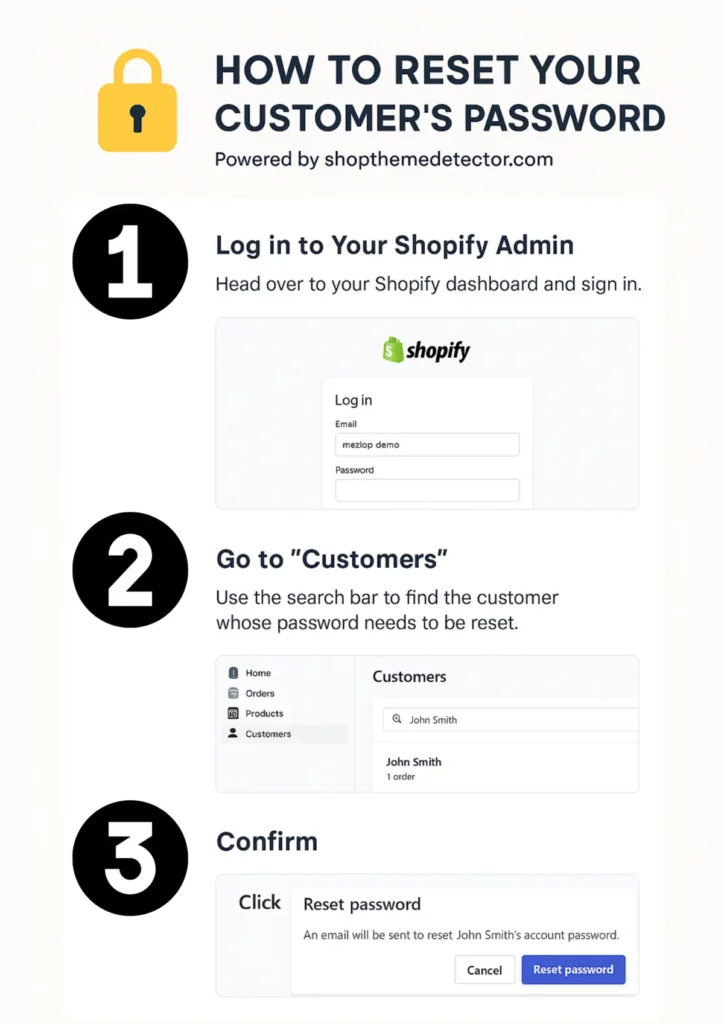
Which Password Are You Resetting?
Most people searching for “reset Shopify password”, “forgot Shopify password” or “change Shopify password” want their own store login. A smaller group, usually running a support desk, needs to help a shopper back into a customer account. These are two different flows, so start by picking the right one.
Reset your own Shopify login (store owner or staff):
- Go to
accounts.shopify.comand click Forgot password. - Enter the email tied to your Shopify account and submit.
- Open the reset link Shopify emails you, then choose a new password.
Reset a customer’s password (you are the merchant):
- In Shopify admin, open Customers and click the customer’s name.
- Click More actions, then Send password reset email.
- Confirm the email address, and the customer sets their own new password from the link.
The rest of this guide expands both flows, starting with your own login.
Reset Your Own Shopify Login Password
Resetting your merchant login is separate from anything you do inside the Customers section. Your exact situation decides which path you take, so match it to the one below.
If You Are Locked Out and Cannot Log In
Go to accounts.shopify.com and click Forgot password on the login page. Enter the email address tied to your Shopify account, and Shopify sends a password reset link to that email. Click the link, choose a new password, and log back in. Staff accounts follow the same flow using the email on their staff profile.
If You Are Already Logged In and Want to Change Your Password
Click your account icon in the top-right corner of the Shopify admin, select Manage account, then open the Security tab. Choose Change password, enter your current password, and set the new one. This sends no email, and the change takes effect immediately.
If You Have Lost Your Two-Step Verification Device
If you cannot log in because you lost your two-step verification device or authenticator app, you will not be able to reset the password on your own. Contact Shopify Support at help.shopify.com. They verify your identity through your billing information and account history before restoring access, so keep your store’s billing email reachable, since that is the main identity signal Shopify relies on.
Staff Accounts
Staff members reset their own passwords with the same “Forgot password” flow at accounts.shopify.com. A store owner cannot reset a staff member’s password for them; the staff member must trigger it from their own email. If a staff member is locked out and cannot reach their email, update the email on their profile first under Settings > Users and permissions > click the staff name > edit email, then have them run the reset.
Reset a Customer’s Password, Step by Step
Shopify never lets a merchant type or view a customer’s password. You trigger a reset email and the customer sets the password themselves. Here is the full path in the current admin.
Step 1: Open the Customers Section
Log in to your Shopify admin at admin.shopify.com and click Customers in the left sidebar. This lists everyone who has ordered or been added manually, with columns for name, email, orders, and amount spent. On a long list, search by email rather than name, and watch for near-identical addresses (such as [email protected] versus [email protected]) so you do not reset the wrong person.
Step 2: Open the Customer’s Profile
Click the customer’s name to open their profile, where you will see order history, contact details, the default address, tags, and an Account section showing whether the account is invited, active, or disabled. If the customer reached you by phone or chat, verify their identity first: ask for the email on file plus one detail from a recent order. Anyone with access to that email inbox gets full control of the account, so this check matters.
Step 3: Send the Password Reset Email
Click More actions near the top of the profile, then choose Send password reset email. A modal shows the email address that will receive the link; confirm it. Shopify sends an email titled “Reset your password” with a link that opens a reset page on your store’s domain or on Shopify’s accounts domain, depending on your customer account settings. The link expires after a few hours, so ask the customer to act on it quickly.
If Send password reset email is missing or greyed out, the customer has almost certainly not activated their account yet. The right move is to send an account invite instead, which lets them set a password for the first time.
Classic Customer Accounts vs New Customer Accounts
Shopify has been moving stores from classic customer accounts to new customer accounts through 2024 and 2025, and the reset looks different on each.
- Classic customer accounts: the customer gets a “Reset your password” email, clicks the link, sets a new password, and logs in with email plus password from then on. This is the flow in the steps above.
- New customer accounts: passwords barely exist here. Customers log in by entering their email and receiving a six-digit one-time code, so there is no password to reset. If a shopper says they are locked out, either confirm they are using the correct email and check spam for the code, or resend the login email from the same Customers admin action (sometimes still labelled “Send password reset” depending on your theme).
To check which type your store runs, open Settings > Customer accounts in Shopify admin. The version shown there decides what your customers actually receive when you trigger a reset.
Reset Email Never Arrives? Troubleshooting
A missing reset email is the single most common problem, for both your own login and customer resets. Work through these before assuming a platform fault.
- Check spam first. Ask the recipient to look in spam, the promotions tab, and any quarantine folder, then wait five to ten minutes in case of a delivery delay.
- Corporate email filtering. Business domains often filter Shopify mail silently. Switch the email on the customer’s profile to a personal address, or use a personal address for your own account, then resend.
- The link expired. Shopify reset links last about twelve hours. If the recipient waited too long, send a fresh one from the same place; the old link will not work even once it lands.
- Wrong customer matched. Always search by email, not name. If you hit “Send password reset” on the wrong record, the link only helps whoever owns that inbox, so nothing breaks; just send another to the correct customer.
- Customer accounts turned off. If you disabled customer accounts under Settings > Customer accounts, the reset option will not appear, because customers cannot log in at all. Turn the feature back on or explain that the store only supports guest checkout.
- The account is disabled or blocked. If you previously disabled the account or blocked the customer, the reset option is hidden. Re-enable the account first if you want them back in.
- Check sender settings. If no customers receive any mail, confirm your store’s sender email under Settings > Notifications is verified, since an unverified sender domain can stop Shopify notifications from going out.
What Happens After You Send a Customer Reset
Once the email goes out, the rest happens outside your admin:
- The customer opens the email and clicks the reset link.
- Shopify shows them a password creation page (classic accounts) or a code-entry page (new accounts).
- They set the new password or enter the code and are logged in automatically.
- Future logins use the new password (classic) or fresh email codes (new accounts).
You will not see the new password anywhere in your admin, and Shopify will not tell you whether the customer finished the reset. The only real signal is whether they can place a new order or get back to you. If they say it still failed, walk back through the troubleshooting list above before assuming a platform issue. One more safeguard: if a reset is requested by someone you cannot verify, especially after a chargeback or suspected fraud, confirm identity before you trigger anything, because once the email goes out, anyone with inbox access can take over the account.
-
What should I do if a customer doesn’t receive the password reset email?
Have the customer check spam, promotions, and any quarantine folder before retrying. Wait 5-10 minutes in case of delivery delay. If it still hasn’t arrived (common with corporate domains that silently filter Shopify mail), update the email on the customer’s profile to a personal address and send the reset again. Reset links from Shopify expire after roughly 12 hours, so old links won’t work even when they finally land.
-
What steps should be taken if a customer forgets their username and password?
The Shopify customer “username” is always their email address, so help them recover the email first. Search your Customers section by name, order number, or shipping address to find their record and confirm which email is on file. Once they have the email, trigger a password reset from More actions > Send password reset email, and they’ll set a new password through the link Shopify sends.
-
What should I do if a customer reports suspicious activity after a password reset?
Send a fresh password reset immediately to lock out anyone who may have grabbed the old link, then review the customer’s recent orders, saved addresses, and contact info for unauthorized changes. If anything looks tampered with, disable the account temporarily while you investigate and contact the customer through a verified channel (not the suspect email) to confirm next steps.
-
Can a Shopify merchant set or see a customer’s password directly?
No. Shopify deliberately hides customer passwords from merchants. The only action you can take from the admin is triggering a password reset email; the customer then chooses and types the new password themselves on a Shopify-hosted page. This protects customers and limits your liability if a staff account is ever compromised.
-
What’s the difference between resetting a customer’s password and resetting my Shopify login?
They use separate flows. Resetting a customer’s password is done inside Shopify admin under Customers > the customer’s profile > More actions > Send password reset email. Resetting your own merchant or staff login is done from the Shopify login page at accounts.shopify.com by clicking “Forgot password,” which emails you a reset link. You cannot reset your own admin password from inside Shopify if you are already locked out.
-
How do I reset my own Shopify admin password if I am locked out?
Go to
accounts.shopify.comand click Forgot password on the login page. Enter the email address tied to your Shopify account and Shopify will send a reset link. Click the link, choose a new password, and log back in. If you are already logged in and just want to change your password, click your account icon in the top-right of the admin, then go to Manage account > Security > Change password. If you have lost access to your two-factor authentication (2FA) device, you will not be able to reset on your own; contact Shopify Support at help.shopify.com and they will verify your identity through your billing information. Staff accounts follow the same self-service reset flow using their own email address. -
Why is the Send password reset email option missing or greyed out?
The option disappears when the customer has not activated their account yet, or when customer accounts are turned off for your store. If the account is unactivated, send an account invite instead so the customer can set a password for the first time. If it is a store-wide setting, check Settings > Customer accounts, since a disabled or blocked account also hides the reset option.
Conclusion: Resetting Customer Passwords on Shopify
There are many ways to support your customers in Shopify. Using the steps above, you can trigger a password reset email for any customer with an active account, and Shopify handles the rest by sending them a secure reset link. This keeps customer credentials private (you never see or set the new password) and helps maintain trust on your store. If you need more help with related customer tasks, our guide on sending account invites covers the flow for customers who haven’t activated their account yet.